> ## Documentation Index
> Fetch the complete documentation index at: https://docs.mobilerun.ai/llms.txt
> Use this file to discover all available pages before exploring further.
# Proxies
> Configure proxies to route device traffic and unlock stealth-level automations.
The Proxies tab lets you register the proxy endpoints your devices will route traffic through. Every device runs behind a proxy, so you need at least one configured before you can spin up a device.
Setting up a proxy is **mandatory** before creating a device. Devices cannot be provisioned without an attached proxy.
## Choosing a Proxy Type
Different automations need different levels of stealth. Pick the proxy type that matches your use case:
| Proxy Type | Stealth Level | Best For |
| --------------- | ------------- | -------------------------------------------------------------------------------------------------------------------------------------- |
| **Static ISP** | Basic | The cheapest option. Great for any automation that doesn't require stealth — general scraping, internal tooling, low-risk flows. |
| **Residential** | Good | Solid stealth and reliable IP reputation. Recommended for collecting high-quality data or running automations where detection matters. |
| **Mobile** | Highest | The most stealthy option. Use this for apps that are hard to get into or aggressively block non-mobile traffic. |
When in doubt, start with Static ISP and only upgrade to Residential or Mobile if you hit detection or blocking issues.
## Protocol Requirement
Mobilerun only supports the **SOCKS5** protocol. Make sure the proxy you purchase from your provider is offered as SOCKS5 before adding it.
## Creating a Proxy
Open the Proxies tab in the dashboard and click **new Proxy** to register a new endpoint. Fill in the form with the credentials you received from your proxy provider.
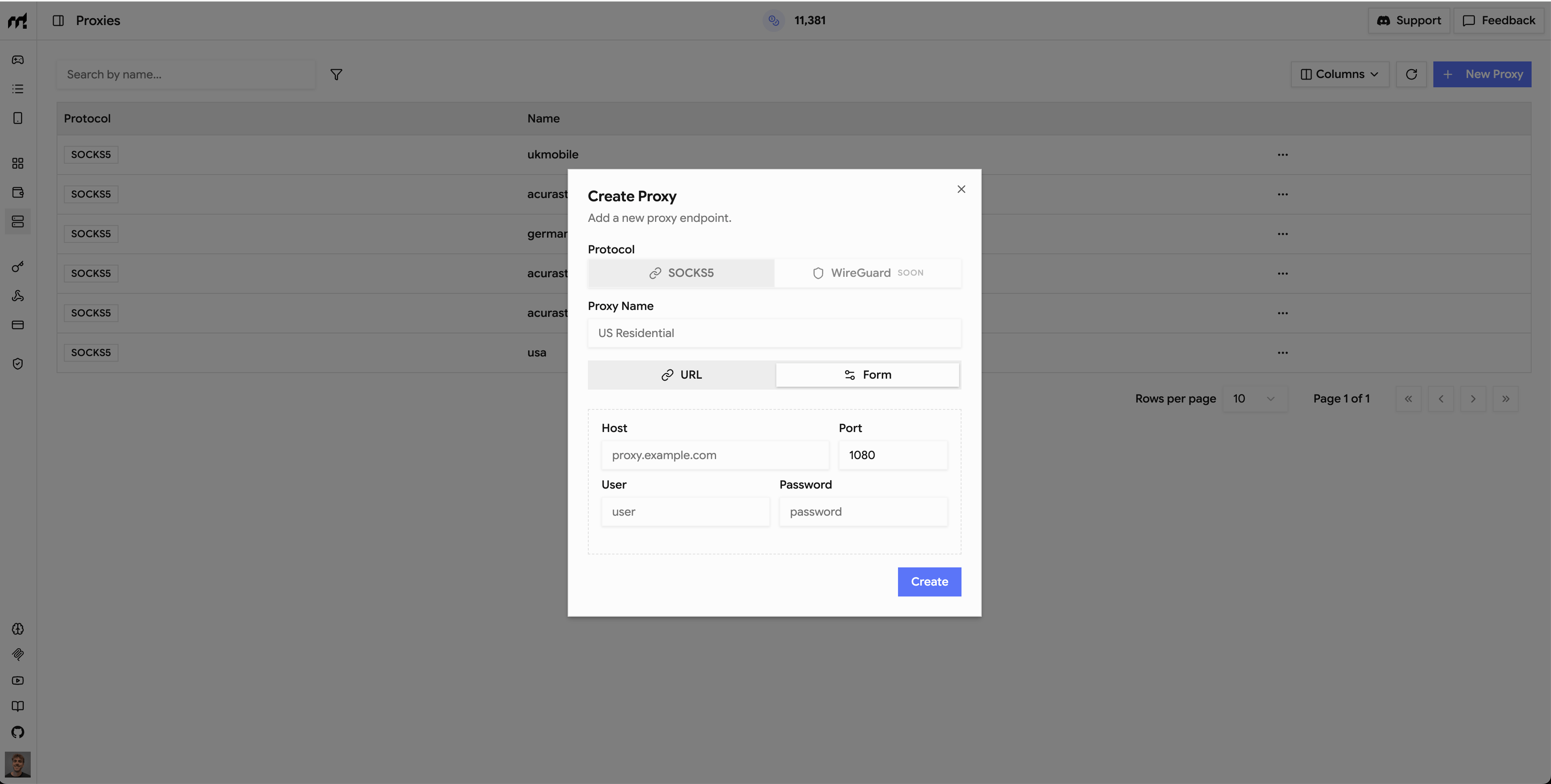 Once saved, the proxy becomes selectable when creating a new device.
## Smart IP
Smart IP is **enabled by default** on every proxy. When active, Mobilerun automatically aligns the device's environment with the target country of your proxy so the device looks consistent with its outbound IP.
Smart IP configures parameters such as:
* **Geolocation** — GPS coordinates matched to the proxy's country
* **System time** — Timezone aligned with the proxy's region
* **System language** — Default locale set to the country's primary language
This drastically reduces fingerprint mismatches that flag automated devices. You can disable Smart IP per proxy if you need to keep the device's local settings untouched.
## Proxy Partners
Need a proxy provider? Here are partners we recommend:
Once saved, the proxy becomes selectable when creating a new device.
## Smart IP
Smart IP is **enabled by default** on every proxy. When active, Mobilerun automatically aligns the device's environment with the target country of your proxy so the device looks consistent with its outbound IP.
Smart IP configures parameters such as:
* **Geolocation** — GPS coordinates matched to the proxy's country
* **System time** — Timezone aligned with the proxy's region
* **System language** — Default locale set to the country's primary language
This drastically reduces fingerprint mismatches that flag automated devices. You can disable Smart IP per proxy if you need to keep the device's local settings untouched.
## Proxy Partners
Need a proxy provider? Here are partners we recommend: