> ## Documentation Index
> Fetch the complete documentation index at: https://docs.mobilerun.ai/llms.txt
> Use this file to discover all available pages before exploring further.
# Get help
> Open a ticket, ask for higher limits, and follow replies from the Mobilerun team.
Something broken, a question, or an idea? Send a ticket straight to the Mobilerun team from the Cloud. Replies reach you by email and inside the app.
## Open a ticket
Click the speech-bubble icon at the top right of every Cloud page to open the ticket dialog.
 You can also open it from:
* The command palette (⌘+K / Ctrl+K): choose **New ticket** or **Your tickets**.
* The **Ticket** item in the **⋯** menu of a device, app, workflow, email inbox or eSIM. This prefills what the ticket is about.
## Fill in the ticket
You can also open it from:
* The command palette (⌘+K / Ctrl+K): choose **New ticket** or **Your tickets**.
* The **Ticket** item in the **⋯** menu of a device, app, workflow, email inbox or eSIM. This prefills what the ticket is about.
## Fill in the ticket
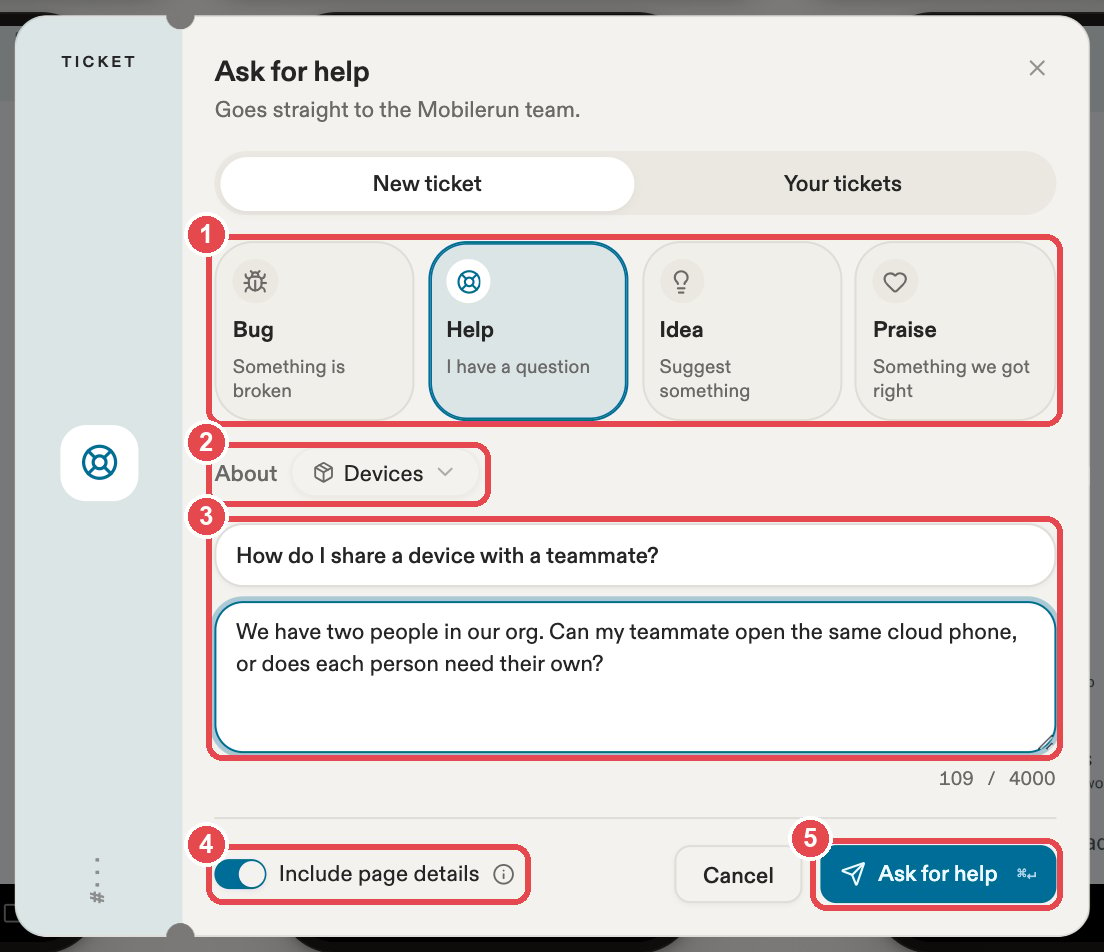 1. **Kind**: **Bug** (something is broken), **Help** (a question), **Idea**, or **Praise**. For a bug, you also pick how much it blocks you: **Blocking**, **Has workaround**, or **Minor**.
2. **About**: the product area. It is prefilled from the page you are on, and you can change it.
3. **Title and details**: describe what happened or what you need, up to 4,000 characters.
4. **Include page details**: attaches the current page, app version, and error and request IDs so the team can reproduce the problem. Turn it off if you prefer. The info icon shows exactly what gets attached.
5. **Send**: submits the ticket. ⌘+Enter / Ctrl+Enter sends it too.
## After sending
1. **Kind**: **Bug** (something is broken), **Help** (a question), **Idea**, or **Praise**. For a bug, you also pick how much it blocks you: **Blocking**, **Has workaround**, or **Minor**.
2. **About**: the product area. It is prefilled from the page you are on, and you can change it.
3. **Title and details**: describe what happened or what you need, up to 4,000 characters.
4. **Include page details**: attaches the current page, app version, and error and request IDs so the team can reproduce the problem. Turn it off if you prefer. The info icon shows exactly what gets attached.
5. **Send**: submits the ticket. ⌘+Enter / Ctrl+Enter sends it too.
## After sending
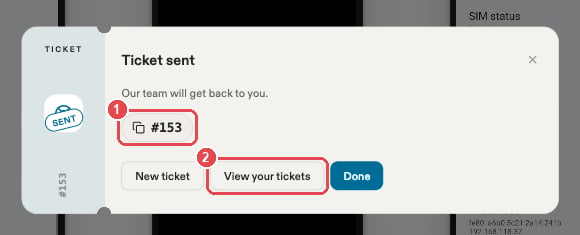 1. Your ticket number. Click it to copy it.
2. **View your tickets** opens the list of your tickets.
## Ask for higher limits
Need more than your plan includes? You have two options:
* **Buy prepaid usage**: under **Billing → Add-ons**, buy extra minutes, credits, or proxy traffic. It is added to your balance right away, no request needed.
* **Request higher overage limits**: go to **Billing → Usage → Monthly overage limits** and click **Request increase**.
1. Your ticket number. Click it to copy it.
2. **View your tickets** opens the list of your tickets.
## Ask for higher limits
Need more than your plan includes? You have two options:
* **Buy prepaid usage**: under **Billing → Add-ons**, buy extra minutes, credits, or proxy traffic. It is added to your balance right away, no request needed.
* **Request higher overage limits**: go to **Billing → Usage → Monthly overage limits** and click **Request increase**.
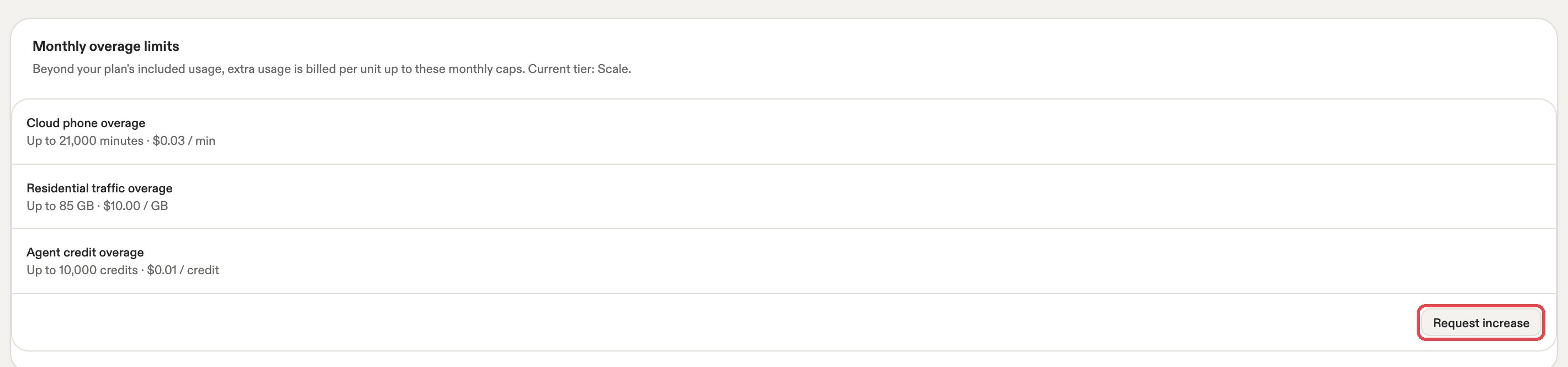 **Request increase** sends a request with your plan and current limits to the team. There is no form to fill in. The same button appears in the usage notice when you reach a limit. The answer arrives like any other ticket reply.
## When the team replies
* **Email**: you get a message titled "New reply to your Mobilerun ticket #153" (with your own ticket number) from `support@mobilerun.ai`. It contains the reply and a **View and reply** button that opens the ticket in the Cloud.
* **In the app**: a blue dot appears on the ticket icon, and the **Your tickets** tab shows an "unread" count.
## Your tickets
**Request increase** sends a request with your plan and current limits to the team. There is no form to fill in. The same button appears in the usage notice when you reach a limit. The answer arrives like any other ticket reply.
## When the team replies
* **Email**: you get a message titled "New reply to your Mobilerun ticket #153" (with your own ticket number) from `support@mobilerun.ai`. It contains the reply and a **View and reply** button that opens the ticket in the Cloud.
* **In the app**: a blue dot appears on the ticket icon, and the **Your tickets** tab shows an "unread" count.
## Your tickets
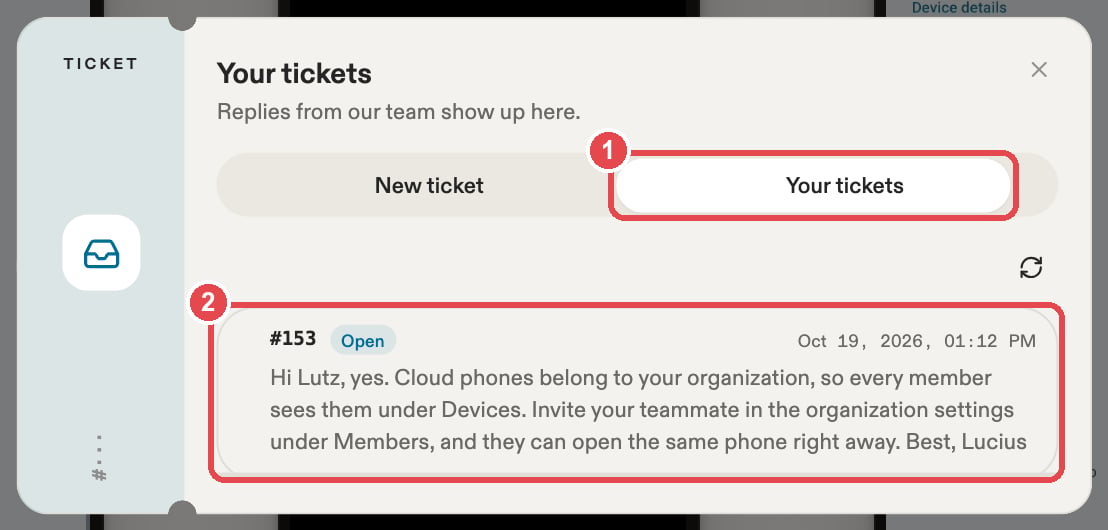 1. The **Your tickets** tab.
2. Each ticket shows its number, status, and the latest message. Click one to open it.
| Status | Meaning |
| - | - |
| Open | The team is on it. |
| Waiting for you | The team needs an answer from you. |
| On hold | Paused, for example while waiting on a fix. |
| Resolved | Done. |
## Reply
1. The **Your tickets** tab.
2. Each ticket shows its number, status, and the latest message. Click one to open it.
| Status | Meaning |
| - | - |
| Open | The team is on it. |
| Waiting for you | The team needs an answer from you. |
| On hold | Paused, for example while waiting on a fix. |
| Resolved | Done. |
## Reply
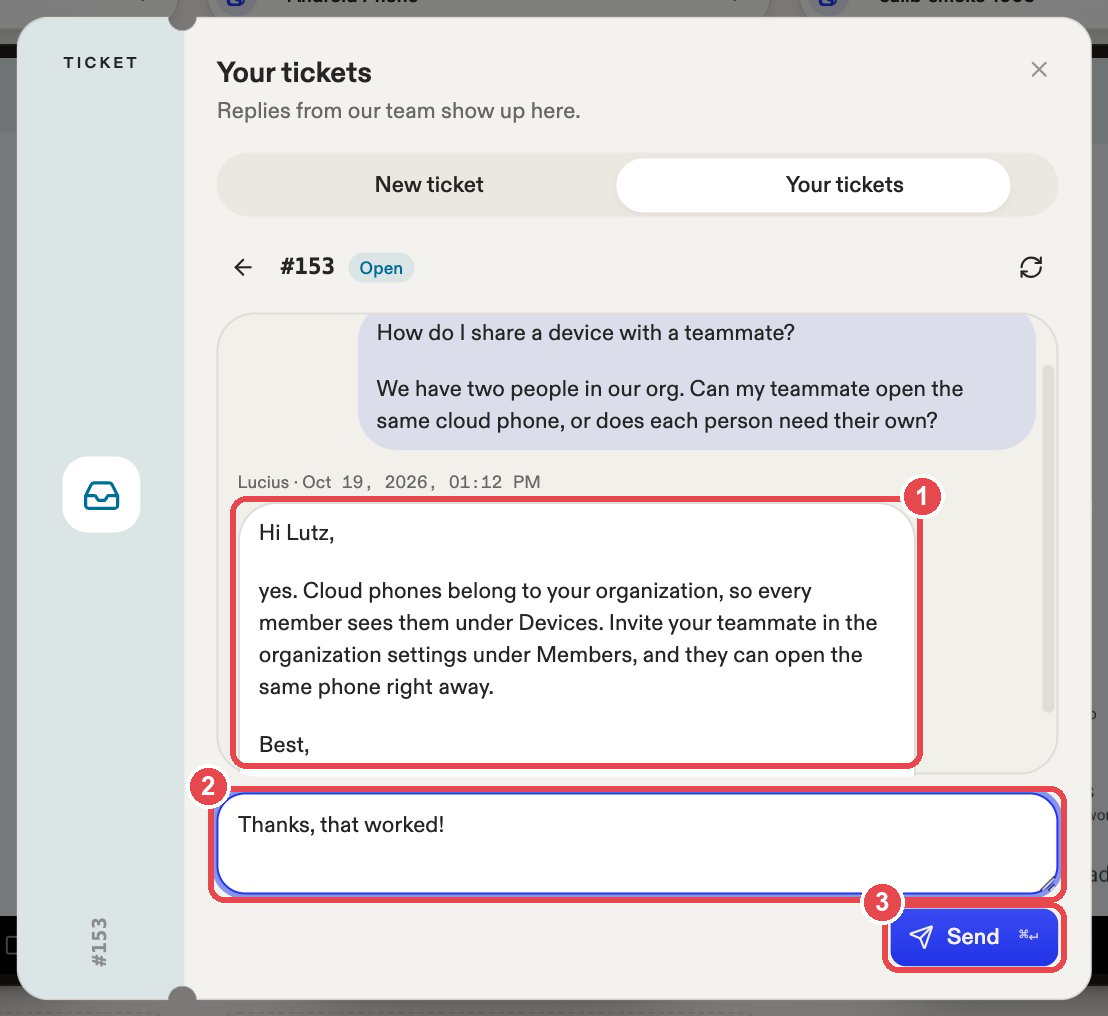 1. The team's reply.
2. Write your answer in the box.
3. **Send**, or press ⌘+Enter / Ctrl+Enter.
Reply in the Cloud, not to the email, so your answer stays with the same ticket. Replying to a resolved ticket opens it again.
The thread refreshes on its own while it is open. Use the refresh icon to update it right away.
Tickets are personal. Only you see the tickets you opened; other members of your organization do not.
This documentation is built and hosted on [Mintlify](https://mintlify.com), a developer documentation platform.
1. The team's reply.
2. Write your answer in the box.
3. **Send**, or press ⌘+Enter / Ctrl+Enter.
Reply in the Cloud, not to the email, so your answer stays with the same ticket. Replying to a resolved ticket opens it again.
The thread refreshes on its own while it is open. Use the refresh icon to update it right away.
Tickets are personal. Only you see the tickets you opened; other members of your organization do not.
This documentation is built and hosted on [Mintlify](https://mintlify.com), a developer documentation platform.